> ## Documentation Index
> Fetch the complete documentation index at: https://gcore-doc-1256a.mintlify.site/llms.txt
> Use this file to discover all available pages before exploring further.

# Activate advanced DDoS protection for Bare Metal

## Creating a Bare Metal server

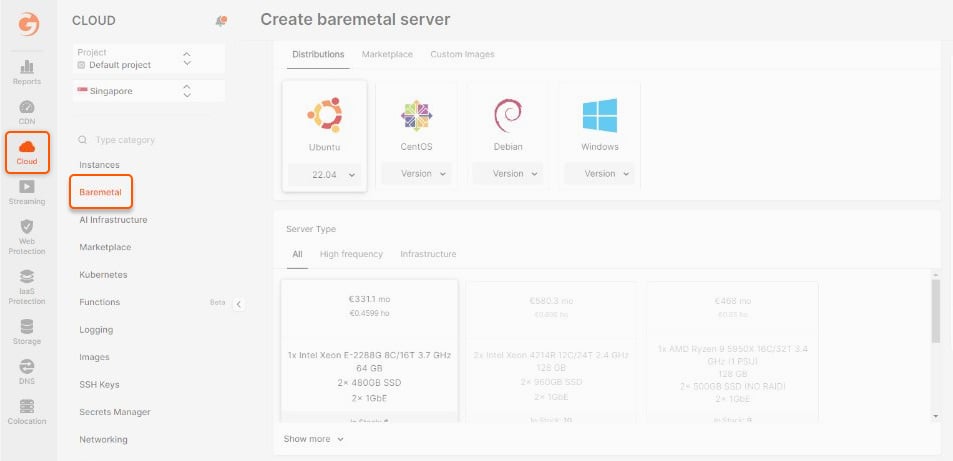
1\. On your Gcore account, click on **Cloud**, then select **Bare Metal Servers**.
<Frame>
  <img src="https://mintcdn.com/gcore-doc-1256a/EMUSHYCg6JvwRBC8/images/docs/cloud/bare-metal-servers/advanced-ddos-protection/activate-advanced-ddos-protection-for-bare-metal-servers/11773280152465.png?fit=max&auto=format&n=EMUSHYCg6JvwRBC8&q=85&s=6f82bc5fd899b01c43e1bbafd9bbf4d0" alt="mceclip0.png" width="953" height="461" data-path="images/docs/cloud/bare-metal-servers/advanced-ddos-protection/activate-advanced-ddos-protection-for-bare-metal-servers/11773280152465.png" />
</Frame>

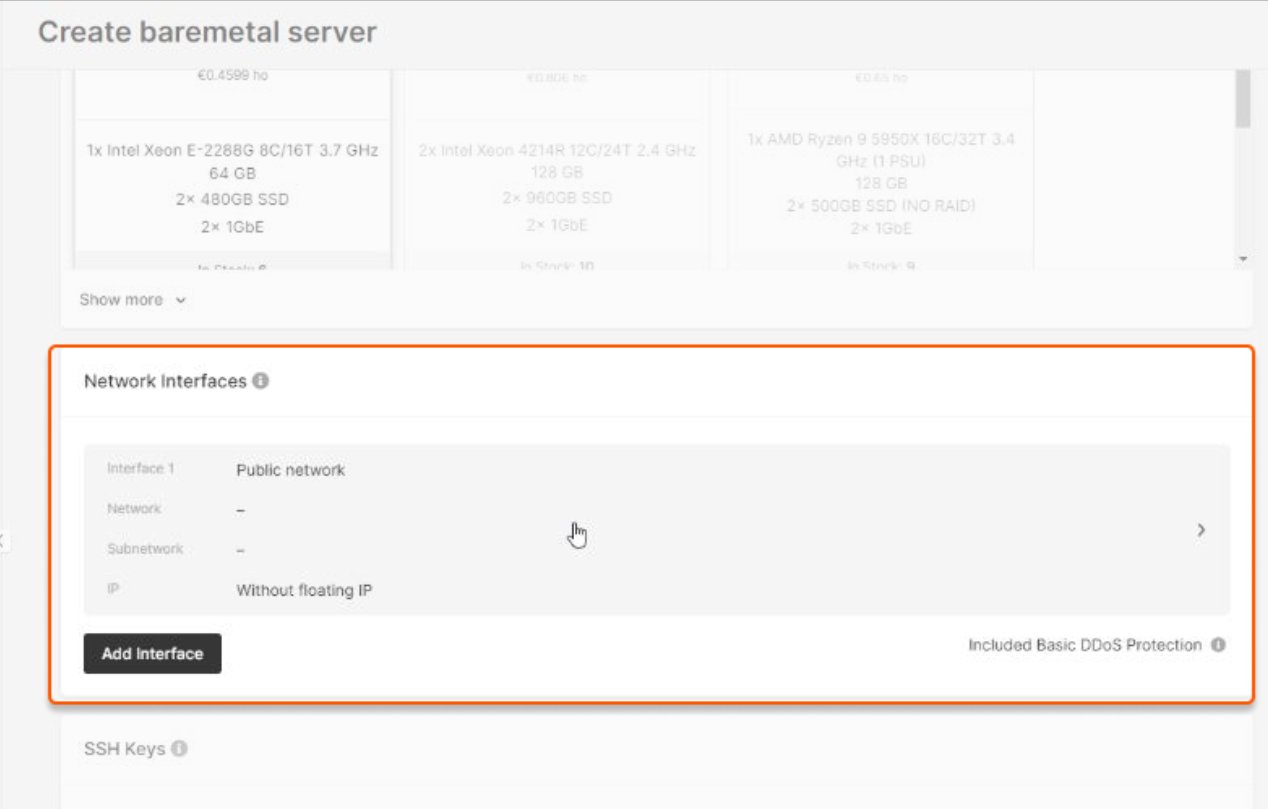
2\. Review the settings in the **Create Bare Metal** section, then go to the **Network interface**.
<Frame>
  <img src="https://mintcdn.com/gcore-doc-1256a/EMUSHYCg6JvwRBC8/images/docs/cloud/bare-metal-servers/advanced-ddos-protection/activate-advanced-ddos-protection-for-bare-metal-servers/11773282277777.png?fit=max&auto=format&n=EMUSHYCg6JvwRBC8&q=85&s=7557c6495cc262ccef3e8d0695bc0e32" alt="mceclip1.png" width="1268" height="809" data-path="images/docs/cloud/bare-metal-servers/advanced-ddos-protection/activate-advanced-ddos-protection-for-bare-metal-servers/11773282277777.png" />
</Frame>

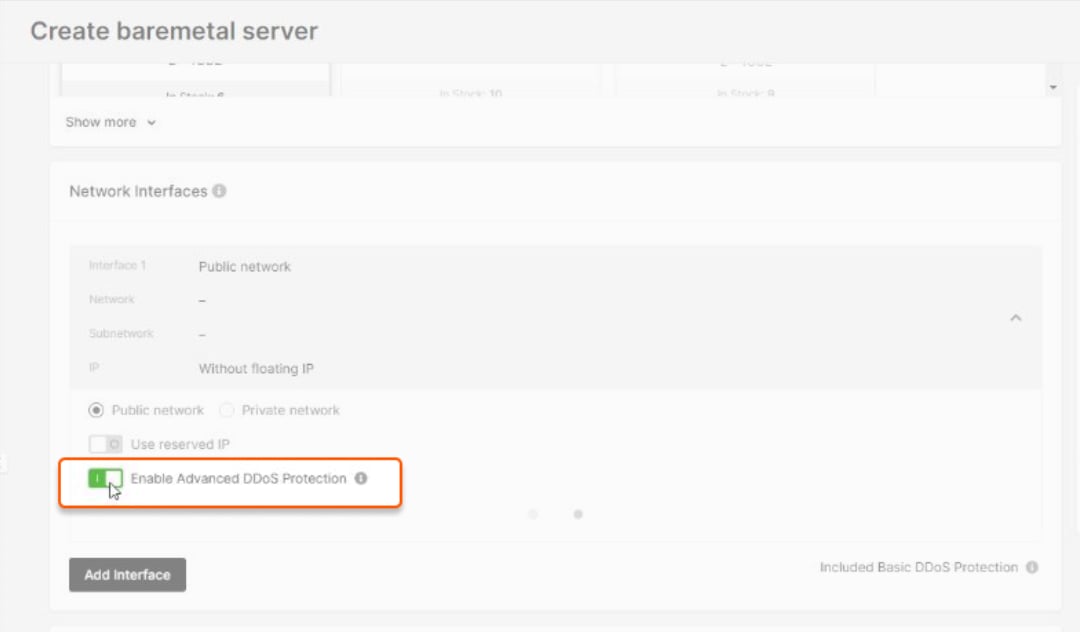
3\. **Enable Advanced DDoS protection** by clicking on the network interface. Please keep in mind that protection can only be enabled on external interfaces or subinterfaces with public IP addresses. The protection does not cover internal interfaces.
<Frame>
  <img src="https://mintcdn.com/gcore-doc-1256a/EMUSHYCg6JvwRBC8/images/docs/cloud/bare-metal-servers/advanced-ddos-protection/activate-advanced-ddos-protection-for-bare-metal-servers/11773270922513.png?fit=max&auto=format&n=EMUSHYCg6JvwRBC8&q=85&s=966179abcee43410f0f73b00d7b9de74" alt="mceclip2.png" width="1080" height="632" data-path="images/docs/cloud/bare-metal-servers/advanced-ddos-protection/activate-advanced-ddos-protection-for-bare-metal-servers/11773270922513.png" />
</Frame>

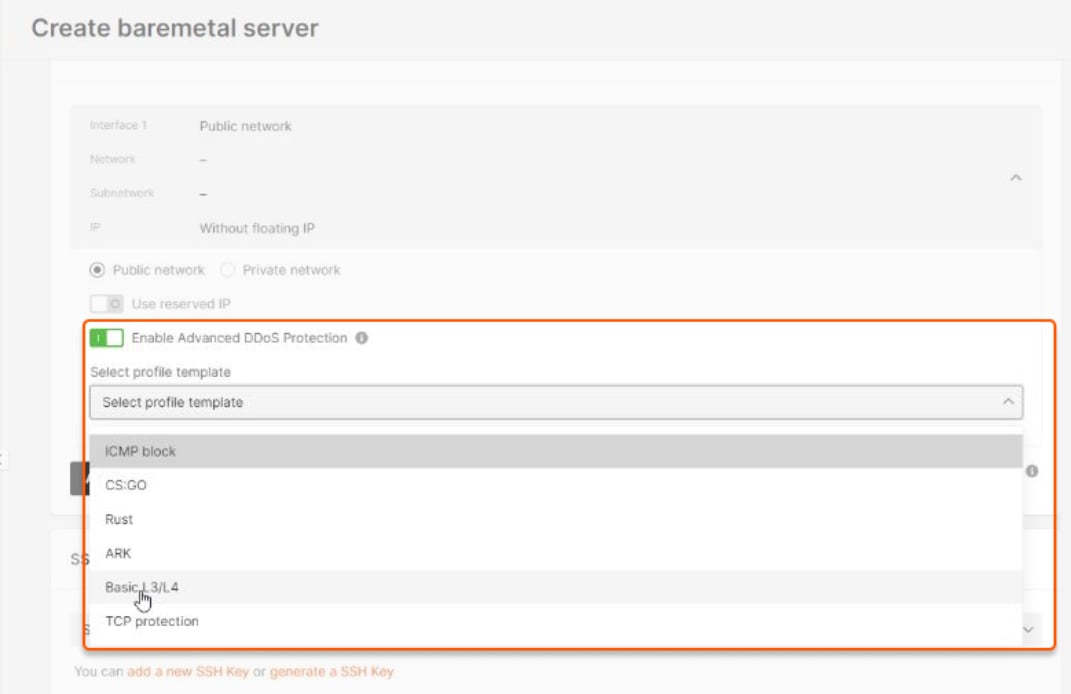
4\. Click the **Select profile template** dropdown. Be sure to fill in additional parameters of the protection template selected.
<Frame>
  <img src="https://mintcdn.com/gcore-doc-1256a/EMUSHYCg6JvwRBC8/images/docs/cloud/bare-metal-servers/advanced-ddos-protection/activate-advanced-ddos-protection-for-bare-metal-servers/11773319536529.png?fit=max&auto=format&n=EMUSHYCg6JvwRBC8&q=85&s=bf2ccb31b83a7c374cdf30a0918ac88d" alt="mceclip3.png" width="1071" height="694" data-path="images/docs/cloud/bare-metal-servers/advanced-ddos-protection/activate-advanced-ddos-protection-for-bare-metal-servers/11773319536529.png" />
</Frame>

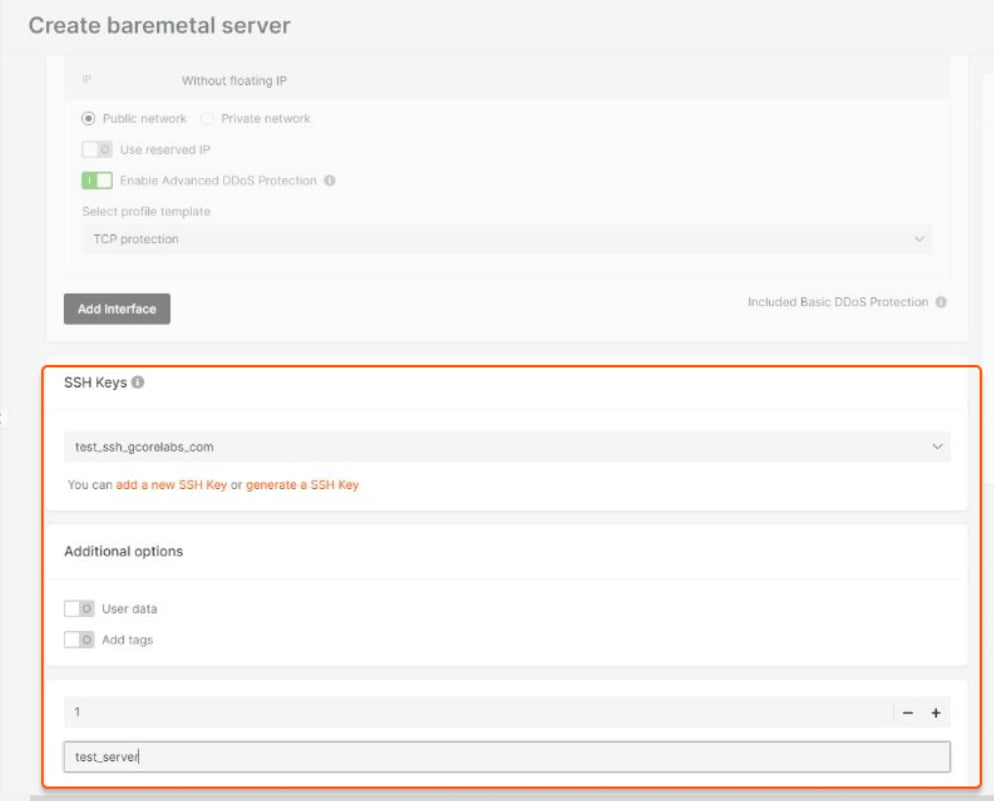
5\. Once you select the profile template, type in the SSH keys and add a name under the **Additional options** section.
<Frame>
  <img src="https://mintcdn.com/gcore-doc-1256a/EMUSHYCg6JvwRBC8/images/docs/cloud/bare-metal-servers/advanced-ddos-protection/activate-advanced-ddos-protection-for-bare-metal-servers/11773321433361.png?fit=max&auto=format&n=EMUSHYCg6JvwRBC8&q=85&s=b8ff6e79e240da7c123ba3be7b4c4a2a" alt="Additional options section" width="994" height="801" data-path="images/docs/cloud/bare-metal-servers/advanced-ddos-protection/activate-advanced-ddos-protection-for-bare-metal-servers/11773321433361.png" />
</Frame>

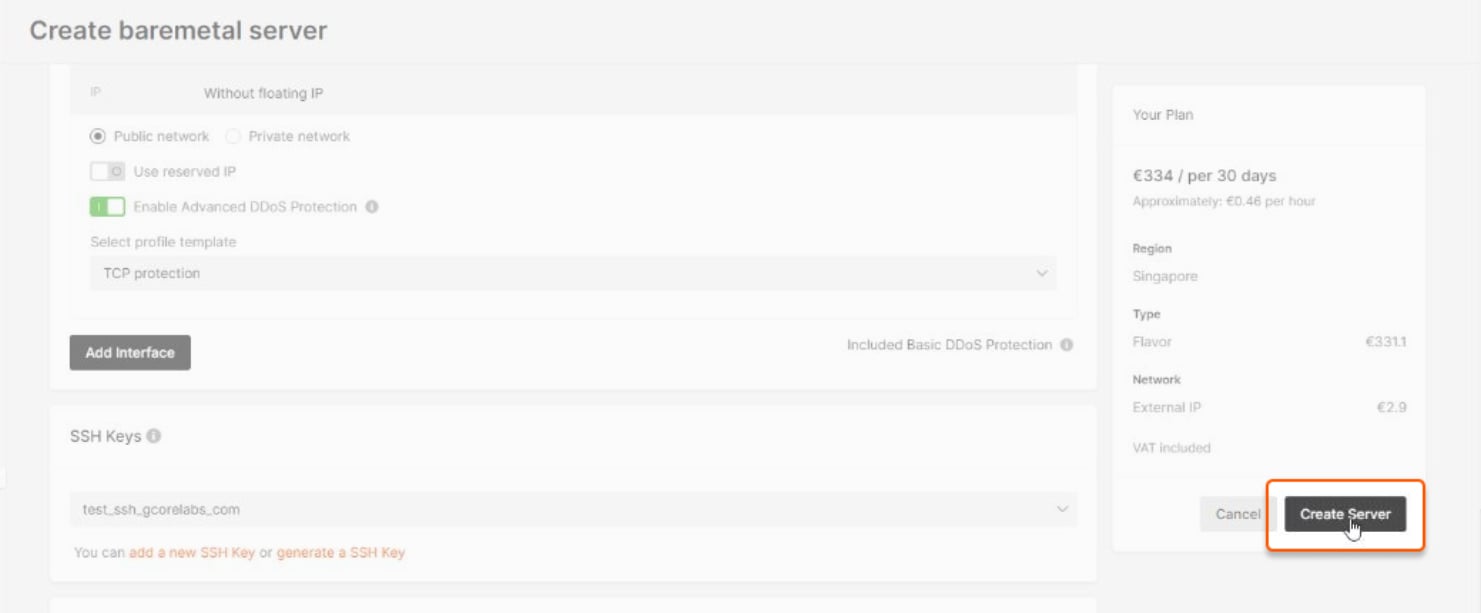
6\. If you're finished, click the **Create Server** button on the right-hand side.
<Frame>
  <img src="https://mintcdn.com/gcore-doc-1256a/EMUSHYCg6JvwRBC8/images/docs/cloud/bare-metal-servers/advanced-ddos-protection/activate-advanced-ddos-protection-for-bare-metal-servers/11773276389905.png?fit=max&auto=format&n=EMUSHYCg6JvwRBC8&q=85&s=46e0fe2ad4afa26de54cd5f00f37ec63" alt="mceclip5.png" width="1481" height="613" data-path="images/docs/cloud/bare-metal-servers/advanced-ddos-protection/activate-advanced-ddos-protection-for-bare-metal-servers/11773276389905.png" />
</Frame>

## Interface configuration

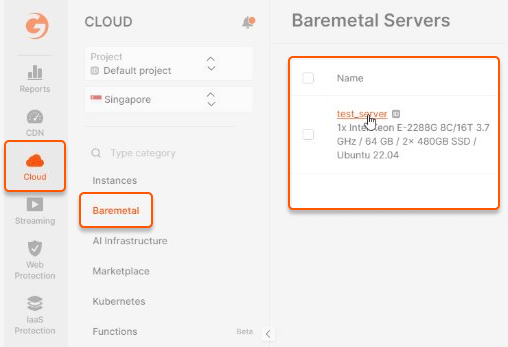
1.On the **Cloud** page, select **Bare Metal Servers**, then click the name of your Bare Metal.
<Frame>
  <img src="https://mintcdn.com/gcore-doc-1256a/EMUSHYCg6JvwRBC8/images/docs/cloud/bare-metal-servers/advanced-ddos-protection/activate-advanced-ddos-protection-for-bare-metal-servers/11773445344913.png?fit=max&auto=format&n=EMUSHYCg6JvwRBC8&q=85&s=73ccd9ca37c80cf52b6c67cb0b7b8ec2" alt="mceclip6.png" width="508" height="347" data-path="images/docs/cloud/bare-metal-servers/advanced-ddos-protection/activate-advanced-ddos-protection-for-bare-metal-servers/11773445344913.png" />
</Frame>

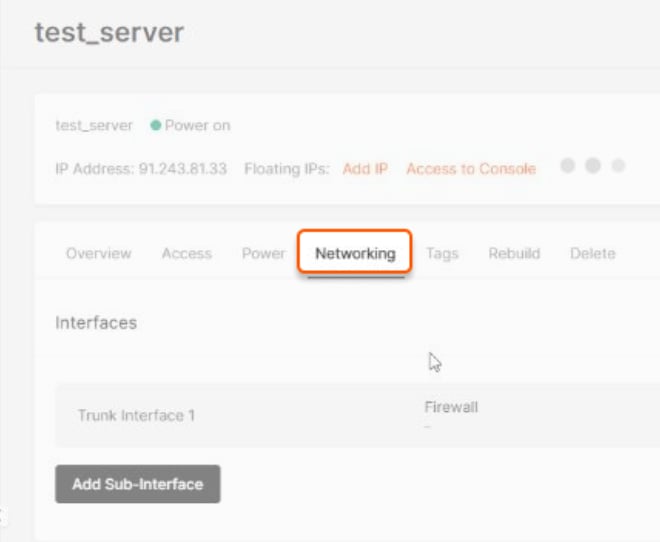
2\. Click on the **Networking** tab.

<Frame>
  <img src="https://mintcdn.com/gcore-doc-1256a/EMUSHYCg6JvwRBC8/images/docs/cloud/bare-metal-servers/advanced-ddos-protection/activate-advanced-ddos-protection-for-bare-metal-servers/11773450082065.png?fit=max&auto=format&n=EMUSHYCg6JvwRBC8&q=85&s=145c5e4a54927d53a44c4e4223e06fc7" alt="mceclip7.png" width="660" height="542" data-path="images/docs/cloud/bare-metal-servers/advanced-ddos-protection/activate-advanced-ddos-protection-for-bare-metal-servers/11773450082065.png" />
</Frame>

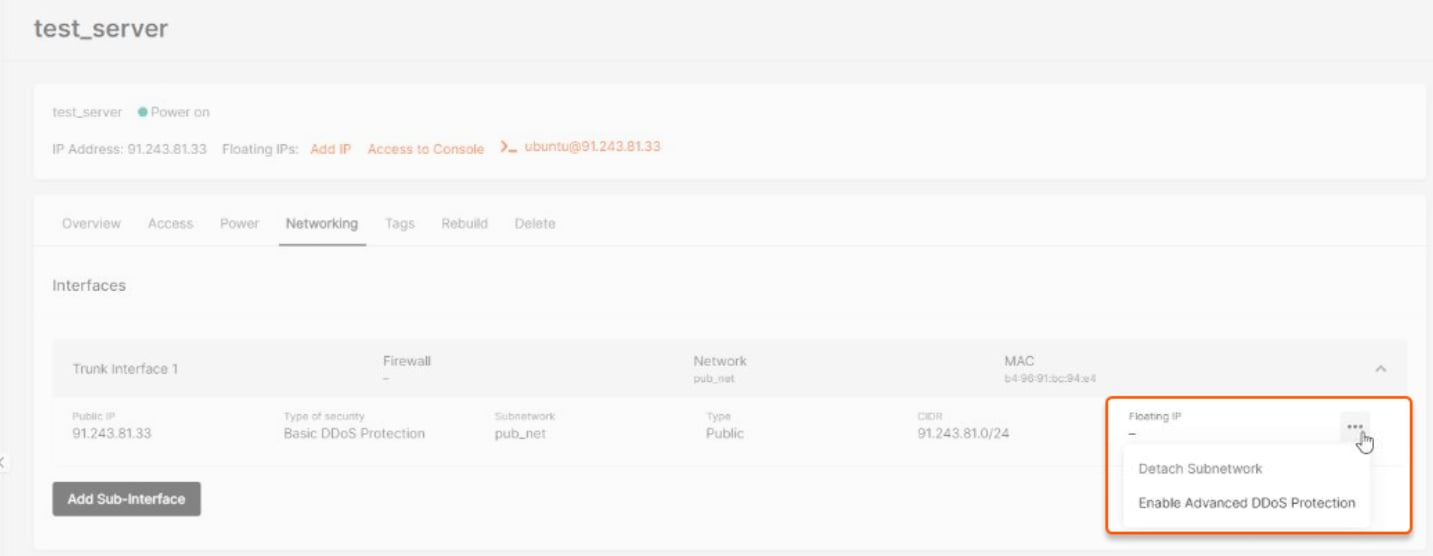
3\. Click on the interfaces. Click the three-dot menu on the far right-hand side, then choose to enable advanced DDoS protection.
<Frame>
  <img src="https://mintcdn.com/gcore-doc-1256a/EMUSHYCg6JvwRBC8/images/docs/cloud/bare-metal-servers/advanced-ddos-protection/activate-advanced-ddos-protection-for-bare-metal-servers/11773488996113.png?fit=max&auto=format&n=EMUSHYCg6JvwRBC8&q=85&s=0a46caab41fa336a1a9df1c66475acea" alt="mceclip8.png" width="1433" height="556" data-path="images/docs/cloud/bare-metal-servers/advanced-ddos-protection/activate-advanced-ddos-protection-for-bare-metal-servers/11773488996113.png" />
</Frame>

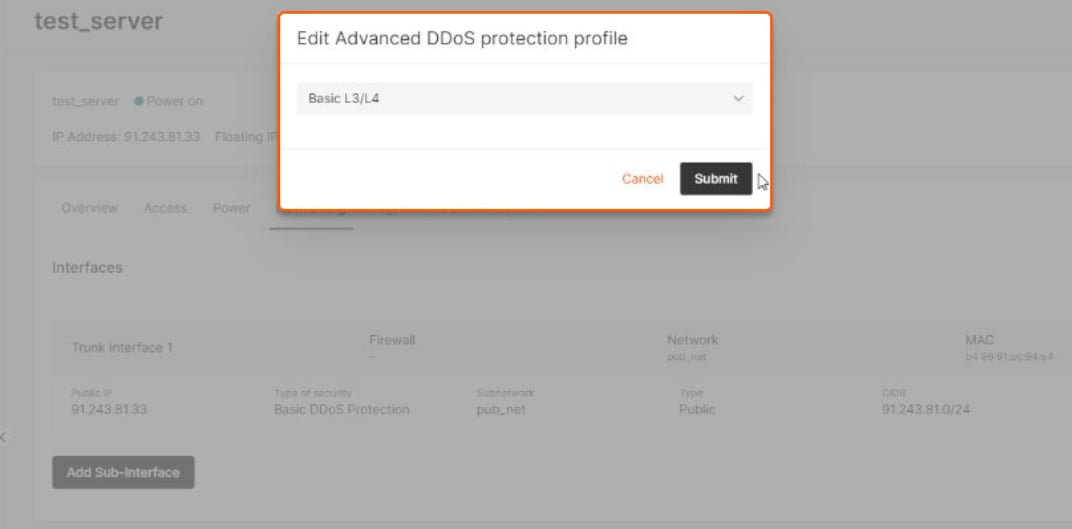
4\. The **Edit advanced DDoS protection profile** pop-up will appear. Click the dropdown to choose your preference, then hit submit.
<Frame>
  <img src="https://mintcdn.com/gcore-doc-1256a/EMUSHYCg6JvwRBC8/images/docs/cloud/bare-metal-servers/advanced-ddos-protection/activate-advanced-ddos-protection-for-bare-metal-servers/11773522634769.png?fit=max&auto=format&n=EMUSHYCg6JvwRBC8&q=85&s=489d3b38c752b6ef8f1c7e715419c939" alt="mceclip9.png" width="1072" height="529" data-path="images/docs/cloud/bare-metal-servers/advanced-ddos-protection/activate-advanced-ddos-protection-for-bare-metal-servers/11773522634769.png" />
</Frame>

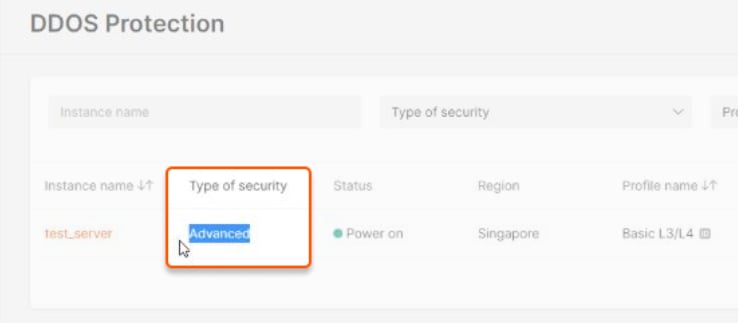
5\. To check, click **DDoS Protection** on the Cloud page on the left-hand side. The type of security should show as **Advanced**.
<Frame>
  <img src="https://mintcdn.com/gcore-doc-1256a/EMUSHYCg6JvwRBC8/images/docs/cloud/bare-metal-servers/advanced-ddos-protection/activate-advanced-ddos-protection-for-bare-metal-servers/11773524742417.png?fit=max&auto=format&n=EMUSHYCg6JvwRBC8&q=85&s=cb3e399682b658528ba9ee34969e868c" alt="mceclip10.png" width="738" height="323" data-path="images/docs/cloud/bare-metal-servers/advanced-ddos-protection/activate-advanced-ddos-protection-for-bare-metal-servers/11773524742417.png" />
</Frame>

## DDoS protection list

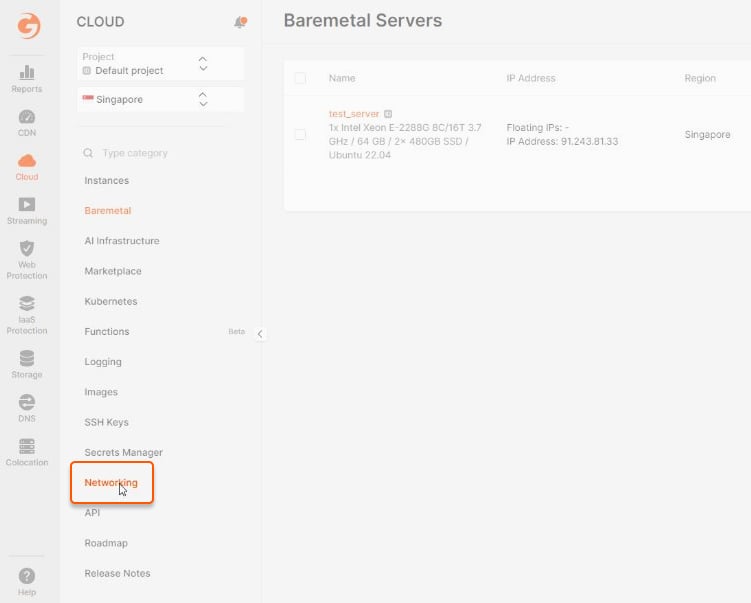
1\. Select **Networking** on the left-hand menu.
<Frame>
  <img src="https://mintcdn.com/gcore-doc-1256a/EMUSHYCg6JvwRBC8/images/docs/cloud/bare-metal-servers/advanced-ddos-protection/activate-advanced-ddos-protection-for-bare-metal-servers/11773548591761.png?fit=max&auto=format&n=EMUSHYCg6JvwRBC8&q=85&s=83a719dd092110bfee77a9f019b87af6" alt="Networking " width="751" height="603" data-path="images/docs/cloud/bare-metal-servers/advanced-ddos-protection/activate-advanced-ddos-protection-for-bare-metal-servers/11773548591761.png" />
</Frame>

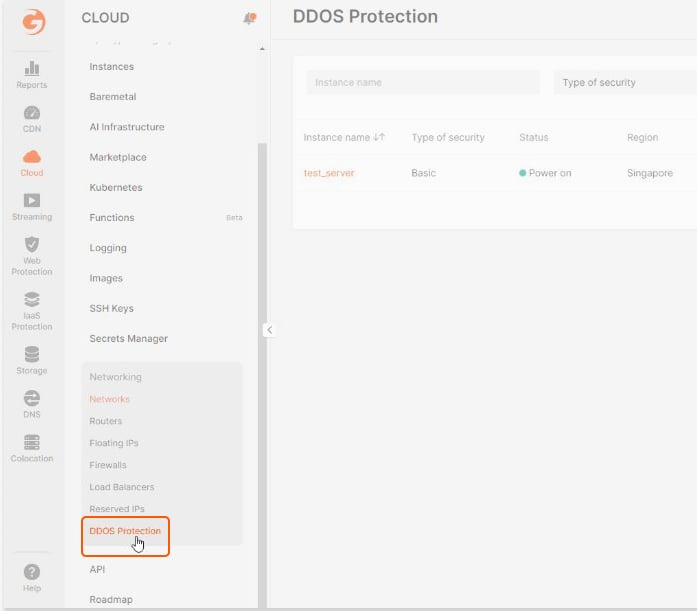
2\. Click **DDoS Protection** from the dropdown options.
<Frame>
  <img src="https://mintcdn.com/gcore-doc-1256a/EMUSHYCg6JvwRBC8/images/docs/cloud/bare-metal-servers/advanced-ddos-protection/activate-advanced-ddos-protection-for-bare-metal-servers/11773581148049.png?fit=max&auto=format&n=EMUSHYCg6JvwRBC8&q=85&s=ea90913632dce9b45afa871c7ce35d09" alt="DDoS Protection " width="697" height="611" data-path="images/docs/cloud/bare-metal-servers/advanced-ddos-protection/activate-advanced-ddos-protection-for-bare-metal-servers/11773581148049.png" />
</Frame>

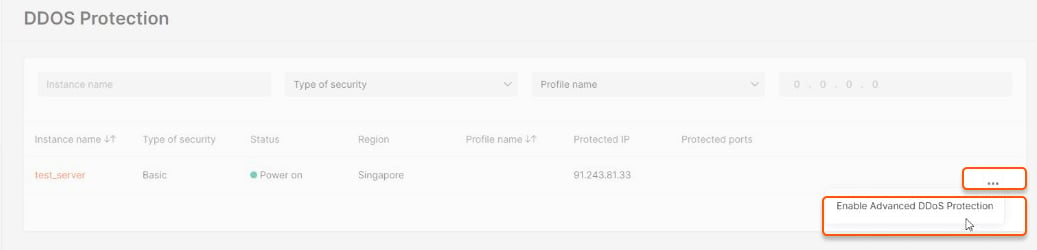
3\. In the **DDoS Protection** section, select the Bare Metal you want to enable advanced DDoS protection for by clicking the three-dot menu on the right side.
<Frame>
  <img src="https://mintcdn.com/gcore-doc-1256a/EMUSHYCg6JvwRBC8/images/docs/cloud/bare-metal-servers/advanced-ddos-protection/activate-advanced-ddos-protection-for-bare-metal-servers/11773583120913.png?fit=max&auto=format&n=EMUSHYCg6JvwRBC8&q=85&s=dee9063d2b999b4c2c9bcd7d1bfded50" alt="mceclip13.png" width="1037" height="250" data-path="images/docs/cloud/bare-metal-servers/advanced-ddos-protection/activate-advanced-ddos-protection-for-bare-metal-servers/11773583120913.png" />
</Frame>

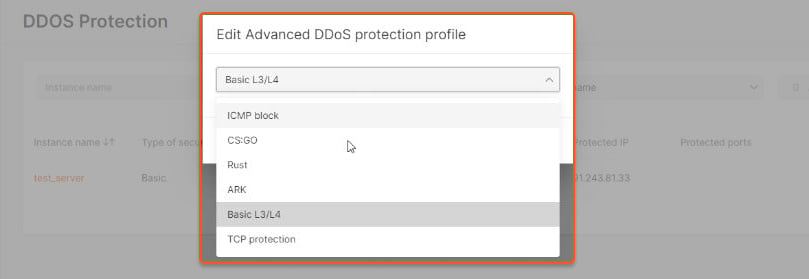
4\. The **Edit advanced DDoS protection profile** pop-up will appear. Click the dropdown to choose your preference. Examples of a profile are the following:

* CMP block
* CS:GO
* Rust ARK
* Basic L3/L4
* TCP protection
<Frame>
  <img src="https://mintcdn.com/gcore-doc-1256a/EMUSHYCg6JvwRBC8/images/docs/cloud/bare-metal-servers/advanced-ddos-protection/activate-advanced-ddos-protection-for-bare-metal-servers/11773590363153.png?fit=max&auto=format&n=EMUSHYCg6JvwRBC8&q=85&s=63bb910caa4161c95edf9d44580c3a1a" alt="mceclip14.png" width="809" height="279" data-path="images/docs/cloud/bare-metal-servers/advanced-ddos-protection/activate-advanced-ddos-protection-for-bare-metal-servers/11773590363153.png" />
</Frame>

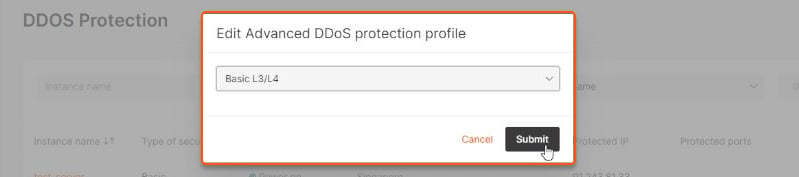
5\. Once you have selected the profile, click submit. Be sure to fill in the required fields based on the selected profile.
<Frame>
  <img src="https://mintcdn.com/gcore-doc-1256a/EMUSHYCg6JvwRBC8/images/docs/cloud/bare-metal-servers/advanced-ddos-protection/activate-advanced-ddos-protection-for-bare-metal-servers/11773623336337.png?fit=max&auto=format&n=EMUSHYCg6JvwRBC8&q=85&s=6b29280b32588889c6f8bca12cc8ebf2" alt="mceclip15.png" width="799" height="177" data-path="images/docs/cloud/bare-metal-servers/advanced-ddos-protection/activate-advanced-ddos-protection-for-bare-metal-servers/11773623336337.png" />
</Frame>

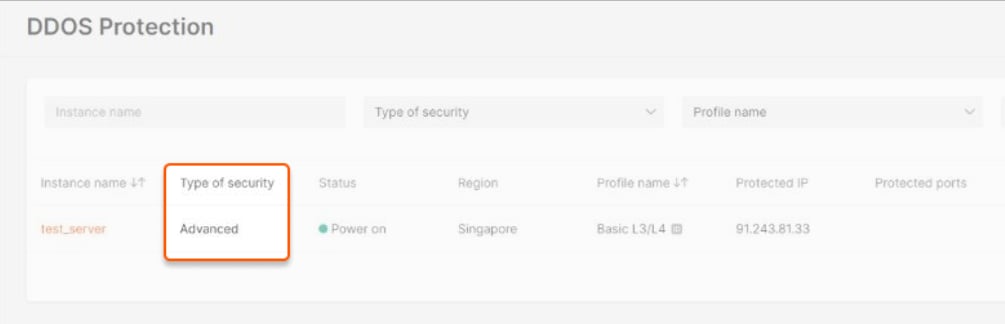
6\. Once you're done, the type of DDoS protection will be changed from basic to advanced, and the name of the profile and other additional parameters will appear.
<Frame>
  <img src="https://mintcdn.com/gcore-doc-1256a/EMUSHYCg6JvwRBC8/images/docs/cloud/bare-metal-servers/advanced-ddos-protection/activate-advanced-ddos-protection-for-bare-metal-servers/11773625038225.png?fit=max&auto=format&n=EMUSHYCg6JvwRBC8&q=85&s=ed75d169ed4f6c23e79d1cc5b3fda259" alt="mceclip16.png" width="1005" height="324" data-path="images/docs/cloud/bare-metal-servers/advanced-ddos-protection/activate-advanced-ddos-protection-for-bare-metal-servers/11773625038225.png" />
</Frame>